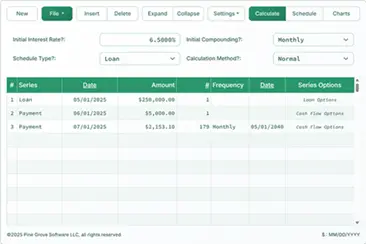
Accurate Amortization Calculator
Introduction to Amortization

Create a printable amortization schedule with dates to see how much principal and interest you’ll pay over time.
- Export to Excel/.xlsx and Word/.docx files.
- Calculate loan payment amount or other unknowns
- Supports 9 types of amortization.
- User can set loan closing date and first payment date independently.
- Automatically calculates prepaid interest
Create a printable amortization schedule that includes payment dates and annual subtotals. The schedule shows how much principal and interest you will pay over the life of the loan. The calculator can solve for any one unknown value: the payment amount, loan amount, interest rate, or loan term.
- What is an amortization schedule?
- An amortization schedule is a table that shows a loan’s complete repayment plan. It lists each payment and shows how much is applied to the loan’s principal and how much to interest, along with the remaining loan balance. Ideally, the schedule includes payment dates and year-end subtotals.
- How do I create an amortization schedule?
- Leave all inputs and settings at their default values. Then:
- Enter the Loan Amount.
- Enter the expected Number of Payments.
- Set the anticipated loan closing date and the first payment due date.
- Enter the expected Annual Interest Rate.
- Set the Payment Amount to 0.
(This tells the calculator to solve for the payment amount.) - Click either or .
- Leave all inputs and settings at their default values. Then:
These are the only steps required to generate your schedule.
If your loan terms differ from the calculator’s default settings, additional options are available.
Continue reading. The following sections explain each option in more detail. More…
Create an amortization schedule with user-specified dates.
To set your preferred currency and date format, click the “$ : MM/DD/YYYY” link in the lower-right corner of any calculator.
Information
Watch on YouTube
Useful Details to Help You Get the Results You Need
First — You must enter a zero (0) in any field where you want the calculator to solve for a value.
Why is this necessary?
The calculator generates a schedule based on the loan terms you specify. The payment amount can be any value, as long as both the lender and borrower agree. There is no single “correct” payment. If the calculator always solved for the unknown value, this feature would not be possible.
TIP — Use the amortization schedule to verify the periodic interest charges. These interest amounts are the most important amounts for borrowers to review.
Four values you must always set:
- Loan Amount — The total amount borrowed, also called the principal. This value does not include interest.
- Number of Payments (term) — The length of the loan, measured in payment periods. This value depends on the Payment Frequency setting. For example, for a 15-year loan with biweekly payments, enter 390 as the number of payments.
(390 biweekly payments = 15 years) - Annual Interest Rate — The nominal (quoted) interest rate for the loan.
- Payment Amount — The amount due on each payment date. For a standard amortizing loan, this value includes both principal and interest.
Set one of the values above to 0 if you want the calculator to solve for it.
Which two dates are critical for an accurate amortization schedule?
If you only need an estimated schedule, you can skip this section.
For a schedule that is accurate to the cent — including correct calculation of stub period interest — it is worth taking a few moments to understand the available date settings.
- Loan Closing Date
- This is the date the loan funds become available. It is also called the origination date, loan date, or start date.
- First Payment Due
- This is the date the first payment is scheduled. For most loans, payments begin after the loan funds are received. For leases, this date may be the same as the loan closing date.
Important — Entering actual dates may result in interest and payment calculations that differ from those of other calculators.
This is by design.
However, if you want your results to match those from other calculators, set the “Loan Date” and “First Payment Due” so that the time between them equals one full period, based on the “Payment Frequency” setting.
Example: If the “Loan Closing Date” is April 10 and the “Payment Frequency” is “Monthly,” then set the “First Payment Due” to May 10 — if you want to estimate interest based on one full month.
More details about stub period options, including odd-day and irregular-period interest.
Four loan options you usually do not need to change
- Payment Period or Frequency — How often should payments be made? The calculator supports 11 options, including biweekly, monthly, and semiannual (commonly used for bond coupon schedules). Payment dates are calculated starting from the first payment due date, not the closing date.
- Compounding Period or Frequency — In most cases, the compounding frequency should match the payment frequency. This results in simple periodic interest. Selecting Exact/Simple calculates interest based on exact day counts using a simple interest method.
- Points — One point equals 1% of the loan amount. Points are commonly applied to U.S. mortgages.Learn more about points, fees, and APR support.
- Amortization Method — Leave this set to normal unless you have a specific reason to change it.See all nine amortization methods.
Five loan settings you may want to adjust

These options are available by clicking Settings.
- 360 / 365 / 366 — Days-per-year setting. Also called the day count convention, this affects interest calculations when you select a day-based compounding method (such as daily, exact/simple, or continuous), or when the loan includes an irregular first period. The 366-day option applies in leap years. Otherwise, 365 is used.
- Payment & Initial Period Interest Options — Controls how interest is calculated and displayed when the first period (from closing date to first payment) is longer or shorter than the standard interval.More details and examples.
- Last Period Rounding Options — Because payments and interest are rounded to the nearest cent (e.g., $345.0457 is rounded to $345.05), most loans require a rounding adjustment in the final period. A note on the schedule will show the exact adjustment.
- Points, Charges, & APR Options —Learn more about loan schedules with points, fees, and APR options.
- Year-End Month — Sets the month after which year-end and running totals are calculated. This is helpful for businesses with a fiscal year that does not match the calendar year.
FAQs — Frequently Asked Questions
- How do I calculate how much I can borrow?
- Set the Loan Amount to 0.
- Enter the Number of Payments.
- Enter the Annual Interest Rate.
- Enter the expected or target Payment Amount.
- Click or .
- How do I calculate how long it will take to pay off a loan?
- Enter the Loan Amount.
- Set the Number of Payments to 0.
- Enter the Annual Interest Rate.
- Enter the expected or target Payment Amount.
- Click or .
- What interest rate allows me to pay $500 per month?
- Enter the Loan Amount.
- Enter the Number of Payments.
- Set the Annual Interest Rate to 0.
- Enter $500 as the Payment Amount.
- Click or .
Printing the Payment Schedule
You can print from any type of device. For example, you can print a clear, well-formatted schedule directly from a smartphone to a wireless printer.(This printing functionality has been tested on several iPhone models printing to an HP LaserJet Pro.)
Do not use your browser’s built-in Print command.
Always print from the “Print Preview…” window. This screen includes a print button and export buttons for the .docx and .xlsx formats.
If you are using a modern browser, you can also print to a PDF.For example, in Chrome, open the browser menu (three vertical dots), choose Print…, then click Change… and select Save as PDF. Other browsers provide similar options.
If you encounter printing issues, please let us know which browser and version you are using. We test across several browsers, but we cannot test with all printer models.

(Chrome, Edge, and Firefox all offer a “Save to PDF” option in their print menus.)
How do I create amortization schedules in Excel (.xlsx) or Word (.docx)?
From the Print Preview screen (after the title page), you will see options to export the full amortization schedule as either an Excel (.xlsx) or Word (.docx) file. When you export to Excel, the schedule is saved as unformatted data. Dates and numbers are preserved as true Excel date and number values—not text—so you can apply your own formatting.
When you export to Word, the schedule is formatted for readability. You can edit the document, add notes, and customize fonts, styles, and layout as needed.The Word export is often more visually refined than the version printed directly by using the print button.
Amortization Equations
Payment Amount Equation


Fig. 4 — Step-by-step solution of the monthly payment amount equation.
Variables: L = 50,000; c = (5% ÷ 12 months); n = 60.
Variable Definitions
- P
- Payment amount
- L
- Loan amount
- n
- Number of months in the loan term.
- c
- Monthly interest rate (nominal annual rate divided by 12).
Calculation Steps
- Substitute the given values into the annuity payment formula:
P = 50,000 × ( (r/n)(1 + r/n)60 ) ÷ ( (1 + r/n)60 – 1 ), withr = 0.05andn = 12. - Evaluate the periodic rate:
r/n = 0.05/12 ≈ 0.0041666666667…and substitute it into the formula. - Simplify the base term:
(1 + 0.0041666666667…) ≈ 1.0041666666667…, keeping the exponent of 60 in both the numerator and denominator. - Compute the fraction:
(0.0041666666667… × (1.0041666666667…)60) ÷ ((1.0041666666667…)60 – 1) ≈ 0.018871233644…, then multiply by 50,000. - Round the payment to two decimal places for reporting:
P ≈ $943.56.
Step-by-step Solution – Fig. 4
P = 50,000 × ( (0.05/12)(1 + 0.05/12)60 ) ÷ ( (1 + 0.05/12)60 – 1 )≈ 50,000 × ( (0.0041666666667…)(1 + 0.0041666666667…)60 ) ÷ ( (1 + 0.0041666666667…)60 – 1 )≈ 50,000 × ( (0.0041666666667…)(1.0041666666667…)60 ) ÷ ( (1.0041666666667…)60 – 1 )≈ 50,000 × 0.018871233644…≈ 943.56
Final Answer
The final answer (P) is approximately 943.56.
Validate the calculator: Five-year (60-month) amortization.
| Loan Amount: | $50,000.00 | Number of Payments: | 60 |
|---|---|---|---|
| Annual Interest Rate: | 5.0000% | Payment Amount: | =943.56 |
| Loan Closing Date: | First Payment Due: | ||
| Payment Frequency: | Monthly | Compounding: | Monthly |
| Points: | 0.0 | Amortization Method: | Normal |
Notes:
- This example uses the same calculation shown in Fig. 4.
- Enter a zero for the payment amount. The calculated result matches the result above.
- The “Days In Year” setting has no effect in this example because the period spans exactly 60 months with no extra days.
Amortization Equation


Fig. 6 — Step-by-step solution of the normal (general) amortization equation.
Variables: L = 50,000; R = 5%; n = 60; A = 943.56 (see Fig. 4).
Normal amortization for any period: ending balance = beginning balance + periodic interest − payment.
Variable Definitions
- R
- Nominal annual interest rate.
- i
- Periodic interest rate.
- I
- Periodic interest amount.
- r
- Growth factor per period (also called the per-period accumulation factor).
- t
- Period number.
- Pt-1
- Outstanding balance at the start of period t.
- Pt
- Outstanding balance at the end of period t.
- L
- Loan amount.
- n
- Number of months in the loan term.
- A
- Monthly payment amount.
Calculation Steps
- Compute the periodic rate:
i = 0.05/12 ≈ 0.00416666666…. - Compute the per-period growth factor:
r = 1 + i ≈ 1.00416666666…. - Set the period:
t = 1. - Start-of-period balance:
Pt−1 = 50,000. - Accumulate interest for the period:
50,000 × r ≈ 50,208.33333…. - Round the accumulated balance for display:
≈ 50,208.33. - Interest for the period:
I = 50,208.33 − 50,000 = 208.33. - Subtract the payment to get the end-of-period balance:
Pt = 50,208.33 − 943.56 = 49,264.77.
Step-by-step Solution – Fig. 6 (first period)
i = 0.05/12 ≈ 0.00416666666…r = 1 + i ≈ 1.00416666666…t = 1Pt−1 = 50,000= 50,000 × 1.00416666666… ≈ 50,208.33333…≈ 50,208.33I = 50,208.33 − 50,000 = 208.33Pt = 50,208.33 − 943.56 = 49,264.77
Validate the calculator: Five-year, 60-month amortization schedule.
| #/Year | Date | Payment | Interest | Principal | Balance |
|---|---|---|---|---|---|
| Loan start | 0.00 | 0.00 | 0.00 | 50,000.00 | |
| 1:1 | 943.56 | 208.33 | 735.23 | 49,264.77 | |
| 2:1 | 943.56 | 205.27 | 738.29 | 48,526.48 | |
| Periods 3–59: Intermediate calculations. | |||||
| 59:5 | 939.75 | ||||
| 60:5 | 943.56 | 3.92 | 939.64 | 0.11 | |
| Without any final rounding, a principal balance of $0.11 remains. | |||||
| 60:5 (final adjustment) | 943.67 | 3.92 | 939.75 | 0.00 | |
| Last payment increased by $0.11 due to interest rounding. | |||||
Notes:
- The results in the table above are taken from the calculator. They match the calculation shown in Fig. 6.
Beyond Basic Amortization Schedules
Need more options?
Explore seven additional loan amortization calculators.
- Mortgage Calculator — Estimate the future home value and compare it to the total mortgage cost.
- Extra Payment Calculator — Apply lump-sum or recurring extra payments with a full amortization schedule.
- Loan Calculator — Includes support for date-based calculations in a mobile-friendly layout.
- Auto Loan Calculator — Evaluate the full cost of vehicle ownership.
- Biweekly Calculator — Compare a biweekly schedule to a standard monthly repayment in a single view.
- Ultimate Financial Calculator — Build schedules with skipped payments, rate changes, and other advanced conditions.
- Loan Payoff Calculator — Track regular or irregular payments on any date.
This calculator is a comprehensive amortization tool. If you need help with a specific scenario or are not sure how to obtain a result, you can post a question in the comments section below.
Steve says:
Love this website of calculators……best I have seen. Question: I just recently did an owner financing sale of a home……fixed rate, 30 yr amortization, 5 yr balloon (I am the lender). Used your balloon calculator to print amortization table. The question is, if borrower makes addtl principal payment how do I track that in terms of new balance due and interest accrual/adjustment for the next month payment? Can one of the free calculators do that OR does a C-Value do it? Also, the extra principal payment may not be regularly scheduled and may be very sporadic. What is the best way for me to track this?
Karl says:
Great to hear it!
For what you want to do, track loan payments, use the Loan Payoff Calculator. It is capable of letting the user enter individual payments(or groups) for any amount on any date. Interest rates can be changed as well. If you try it, scroll down the page and look at the tutorial.
I’ll add, this is similar to C-Value!. The only reason you would want C-Value! is if you want to save your work as payments come in.
Steve E says:
Follow up to my March inquiry. Details……I owner financed a home loan to buyer, 30 yr amortization with 5 yr balloon. Fixed interest rate, compound monthly. Buyer adds addtl principal payment amount to each monthly payment but the addtl amount varies monthly. You advised how to use UFC for this, tutorial #25 as example. I did this and it worked well with varying addtl principal amounts. When I click on Schedule, it obviously just shows the current payments and current balance/running totals. However, how can I see or calculate what the actual balloon balance will be at any time when there are varying principal payments made; is there a way to see the amortization table continuously updated as varying principal payments are posted monthly for the 30yr amortized note with a 5 yr balloon. If C-Value does this and UFC cannot or C-Value is better, I am fine buying it (probably will anyway because I want to save my work; I just need to be sure it does what I am looking for). Thanks.
Karl says:
"I did this and it worked well with varying addtl principal amounts."
Good. Glad to hear.
"However, how can I see or calculate what the actual balloon balance will be at any time"
You’ll continue to enter the payments as they are made. Then, the next to last row will be the remaining scheduled payments for the scheduled amount. They will not reflect the additional payment, because they are an unknown of course. If 24 payment months have passed then this row will be for 35 monthly payments (one less due to the balloon).
The final row will be a single unknown payment amount. This will be the projected balloon payment given the actual payments to date plus the scheduled payments.
Clicking the schedule button will show you an updated amortization schedule.
""
Donna says:
There are two options under the “Initial Period Interest Payment Options”, but I don’t see how one is able to select just one. I am interested in the first, the one where the initial cash flow period is longer than the payment frequency, but if I check “amortized” under that option, a box remains checked in the second option (“If initial cash period is shorter)
Is there a way to uncheck boxes in the”shorter cash period”, or will the correct calculations be made as long as “Loan Date” and ‘First Payment Date” are entered in the calculator.
Thank you.
.
Karl says:
There will always be 2 options checked. That’s how it is designed.
The key word is "if." "If initial cash flow period is longer…" or "If initial cash flow period is shorter…"
If the payments are scheduled to be monthly and the loan date is March 24th and the first payment date is May first then that’s a long first period and the option in the first group applies.
If the loan date is March 24th but the first payment date is April 1st, then that’s a short first period and the options in the second group apply.
So the calculator makes the decision which option to use based on the dates you enter relative to the payment frequency selected. Does that help?
Donna says:
Thank you so much for the prompt reply!
Karl says:
You’re welcome. My pleasure.
Julie Milliken says:
How do I calculate a loan with an 18 month deferred payment?
Karl says:
Depends on the particulars. I’ll assume that it’s not the first payment that’s deferred by 18 months, because this calculator will handle that, simply by setting the first payment date to be 18 months after the loan date.
If a subsequent payment is late by 18 months, then you’ll need to use this loan payoff calculator. This calculator will let a user set any payment date for any payment. Payments can be skipped. If you try it, scroll down the page to the tutorial. If you have questions, just ask. Or if I misunderstood, please give me more details.
Steve Herman says:
Thanks, Karl,
I managed to get the right interest rate to post. So I’m ok. I appreciate the fast feedback, and have a great day.
Steve
Steve says:
I’m having trouble inserting the correct interest amount. The AFR for the loan I want to make is 2.17%. But I can’t find a way to input an amount like 0217 so that it converts to 2.17%. Can you help.
Thanks very much,
Steve
Scott Gerstein says:
Hi, great resource. Thanks for your hard work! However there seems to be a glitch. I hit “Calc” on your default data in the above amortization calculator, and the table is showing two payments due on 12/31 of an amount higher than the calculated monthly payment. When I changed the parameters of the loan to match my specific needs, the same thing occurred. On your example, it shows a monthly payment of $738.92, but on 12/31 it shows additional payments of $5172.44
Note: I didn’t change the sample parameters you input into the calculator
Below is a screenshot of what i’m referring to (or at least my best effort to cut and paste!)
11/01/2019738.92106.47632.4528,739.41
112/01/2019738.92104.18634.7428,104.67
112/31/20195,172.44777.114,395.33
112/31/20195,172.44777.11
Karl says:
The 12/31 dates are not payment due dates. They are total rows.
The first 12/31 row displays the totals for the year indicated.
The second 12/31 row displays the running totals since the inception of the loan.
This will become more apparent if you look at the totals for 12/31/2020 or if you click Print Preview (print preview shows a nicer looking schedule).
OK? Or did I misunderstand?
Scott G says:
Thanks for the quick reply! Now I see it, the figures I was referring to are the running totals. And it’s much clearer once I hit Print Preview. Again, appreciate your work!
Karl says:
You’re welcome. When I made the last modification to the calculator a few weeks ago, I broke the payment number column and the total labels. That’s why it was confusing. It’s now fixed. You don’t need to use the print preview to see the payment count.
SEAN says:
Can you share the mathematical calculation you use when calculating the payment on a loan with a shorter first period and wanting equal payments? I am trying to create something similar for an excel workbook and am hoping you share some of your knowledge.
Karl says:
I limit my support to two types of questions. One, how to use a calculator, and two, what calculator to use to solve a particular problem. Unfortunately, if I answered questions like this, it would leave less time for developing (I only do this part-time) and for providing support for the calculators themselves. I can tell you this however what you are asking about is not solved by a simple equation. It requires probably a few hundred lines of code.
Randy says:
I am having some trouble with the amortization schedule. I have inserted all of the values for the variables with my note terms, including the amount of the annual payments. But when it calculates, it changes the first annual payment to an amount higher than the periodic payment provided in the note. The rest of the payments show the amount as entered. Any ideas how to fix this?
Karl says:
My guess is, it will have to do with the loan date and first payment date you’ve entered. Is the payment frequency monthly? And if so, is it exactly one month between the loan date and the first payment date? If not, then the first payment will need to be adjusted. The way it is adjusted depends on the options selected for either a long or short first period (depending on if the actual period is longer or shorter than the selected payment frequency).
Scroll down the page to the heading "Important Note About Dates:" for some details.
If this accuracy isn’t important to you, then set the dates so they are equal to one payment frequency.
Joseph Herbst says:
Jut put in some numbers and the calculated payment was wrong
Karl says:
I can’t tell if you are asking for help or not?
I can assure you however, the calculator is very accurate. If you are not getting a value that matches your expectations, have you tried changing all the options on this calculator? I’m happy to help explain any value, but you need to give me the details of the loan including dates, and the settings for the other options. Also tell me the result you need/expect.
On the other hand, it doesn’t really matter that the calculator matches someone’s expectations, because it (the calculator) will allow a user to set any payment amount and it will create the amortization schedule using the payment amount the user desire. A calculated payment is a starting point, not an ending point for any loan. It’s the interest charges each period that are important to audit.
Brian says:
I put in the values as I did before it was updated and got different and incorrect numbers this time. It seems to have lost the option of using the Canadian method of calculation. Please go back to the previous version. It worked better.
Karl says:
Rolling back to a prior version is never the solution. If there’s a problem and you care to actually document it, I’ll fix it. "It seems" doesn’t help. It either has, or it hasn’t. An example would be appreciated. You can copy/paste the custom URL to a follow-up comment and tell me what you think is wrong and that will give me everything I need. Note however, nothing changed between the last version and what is currently hear concerning Canadian loans. So if there’s a problem with the Canadian calculation, it has been a problem for a while, I suspect.
Brian says:
At the beginning of April I put in the following data
mortgage amount = 654440.19
interest rate = 2.99%
Canadian method
semi-annual
payment = 2200.00
the result was 1620.58 interest and 579.42 principal
this month I put in
mortgage amount = 654440.19 – 579.42 = 653860.77
same interest rate = 2.99%
same payment = 2200.00
BUT different results. The calculation showed an interest portion greater than last month
(from memory) 1629.00 So, something different. The interest payment cannot be more on a decreasing balance owed.
any help? Thanks
Karl says:
Thanks Brian for the additional details. They help. While, I certainly agree with your conclusion, "the interest payment cannot be more on a decreasing balance owed," I’m not see the problem your are describing.
Here are my inputs for the 1st calculation.
Loan Amount?: $654,440.00
Number of Payments?: 0
Annual Interest Rate?: 2.9900%
Payment Amount?: $2,200.00
Loan Date?: 03/01/2019
First Payment Due?: 04/01/2019
Payment Frequency?: Monthly
Compounding?: Semiannually
Points?: 0.000
Amortization Method?: Canadian
Interest: 1,620.58(so we agree)
Here’s my 2nd calculation:
Loan Amount?: $653,860.77
Number of Payments?: 0
Annual Interest Rate?: 2.9900%
Payment Amount?: $2,200.00
Loan Date?: 04/01/2019
First Payment Due?: 05/01/2019
Payment Frequency?: Monthly
Compounding?: Semiannually
Points?: 0.000
Amortization Method?: Canadian
Interest: 1,619.15(so it’s less)
I’m wondering if you might have looked at the number quickly and thought you saw 1629 when it was 1619?
The only other thing is, the dates are important. For both of your calculations, was the first period exactly one month? Or is there a chance there was an extra day? If there was though, I thing the interest would have been more than 1629.
If you still think there’s a problem with the calculator, let me know, and I’ll keep looking into it.
Molly says:
I would like to start my payments on 6/1/14, but the computer won’t let me. It wants to use the current year. Can this be done?
Karl says:
You should be able to enter any date between Jan. 1, 1980 and Dec. 31, 2099.
Can you tell me how you are entering the date? Typing it in? Or using the calendar?
Have you change the default date format by any chance? That’s on the same window where users get to pick currency symbol. If you are in the US, the date format should be set to MM/DD/YYYY. If you are typing in the date, only type the numbers, not the “/”.
Please let me know if none of this helps. Hopefully this will help.
Kelly says:
I have a loan that I’m not sure exactly how to enter it. I have a 10 year term note (120 months) and the first six months are interest only payments, with a balloon payment at year 10. Can I do everything on one amortization or do I have to do two separate ones? (One for the interest only payments and another one for the principal and interest payments with the balloon?)
Karl says:
There’s a better calculator on this site for the calculation you want. Please use the Ultimate Financial Calculator. It will allow you to set the first 6 payments to interest only and then you’ll be able to do the calculation in one schedule.
If you try the calculator, scroll down the page to the tutorials. There’s one for initial interest only periods and one or two about balloon payments.
And of course, if you have any questions, just ask. I’d like to hear how you make out.
Kelly says:
It worked perfect! Thank you!
Karl says:
Great to hear. Thanks for letting me know!
Sabine Niehaus says:
Is there a way to enter extra principal payments?
Karl says:
Not with this amortization schedule, but with this loan calculator you can enter extra payments. And it will create an amortization schedule and allow you to set the dates too. Basically the same thing as this calculator with with the extra payment feature added.
Sabine Niehaus says:
I am trying to match what an attorney sent to set up an owner financed purchase. I have a loan date (date of closing) of 3/8/19 and a loan start date of 4/1/19. Your first calculator shows the first payment in April to be calculated from 3/18/19 to 3/30/19 (360 day method). So the first payment in April is less than the other payments (not a full month in March was due.)
The second calculator, where I can add extra payments, starts with all payments the same. Even though start of loan was 3/8/19 again.
Also, I have schedule extra payments at regular intervals? I have a person making random extra payments as cash is available. I can’t just type in the extra payment? I have to fiddle with the calculator to enter one extra payment and then a recurring payment months away? Then when another extra payment comes in…start over with the schedule?
Karl says:
In that case, since you want to track payments, then this loan payoff calculator is the recommended tool. You can enter or track payments as they are made on any date for any amount. A payment can be a regular payment or an extra payment. Scroll down the page. There’s a tutorial to get you started. And of course, if you have questions, just ask on that page.
About that short first period, check under "Setting" for various options as to how it can be handled.