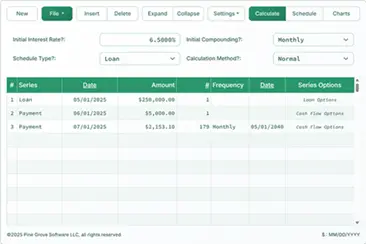
Accurate Loan Payoff Calculator™
Introduction to Loan Payoff Calculation

Payoff Calculator tracks payment amounts on the date paid. Calculate penny-perfect loan balance.
- Allows for missed payments
- Allows for extra payments
- Allows for interest rate changes
- Add fees or charges if needed.
- Export schedule to Excel/XLSX and Word/DOCX files
A perfect calculator for seller financing transactions.
What is a loan payoff amount?
The loan payoff amount is the unpaid principal balance plus all unpaid accrued interest as of a specific date. The borrower must pay this amount on that date to fully repay the loan.
What is a loan payoff calculator?
A loan payoff calculator tracks individual payments on their actual payment dates. It includes overpayments and underpayments to calculate the current loan balance or the final payoff amount.
What is seller financing?
Seller financing, also known as owner financing, is a financing arrangement in which the asset seller—typically the property owner—provides the loan directly to the buyer. The buyer makes payments to the seller, usually after making a down payment.
What is an owner financing calculator?
An owner financing calculator allows the seller or buyer to calculate the current loan balance. It tracks each payment on the actual date it was made, including overpayments and underpayments.
The Accurate Loan Payoff Calculator helps users manage an owner financing agreement or determine the correct loan payoff amount. You can watch the tutorial videos or follow the written instructions below…
Accurate Loan Payoff and Owner Financing Calculator
To set your preferred currency and date format, click the “$ : MM/DD/YYYY” link in the lower-right corner of any calculator.
Information
This calculator helps you calculate the loan payoff amount. It supports on-time, late, missed, and extra payments. It also supports changes to payment amounts and interest rates.
- The Accurate Loan Payoff Calculator is designed for users who need one or more of the following tools:
- loan repayment calculator
- mortgage payoff calculator
- student loan repayment calculator
- home loan repayment calculator
- car loan repayment calculator
- debt payoff calculator
- debt repayment calculator
- early loan payoff calculator
We recommend that all users complete the more detailed first tutorial to understand the calculator’s key concepts and settings.
Owner Financing
Step-by-Step Tutorial — Tutorial 25
Watch on YouTube
To calculate a loan or mortgage balance and to record payments as you receive them, follow these steps:
- Set “Schedule Type” to “Loan”.
- Or click the button to remove any previous entries.
- Click .
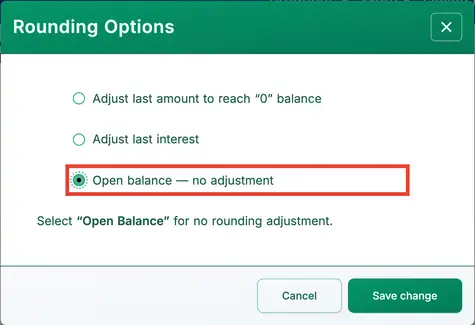
- Set “Rounding” to Open balance — no adjustment.
- This setting allows you to enter individual payments. See Fig. 1.
- Other rounding options will automatically adjust the final payment to bring the loan balance to zero.
- Set “Rounding” to Open balance — no adjustment.
- Click .
- Set the “Days Per Year” option to “360 Days Per Year”.
- In the header section, apply the following settings:
- For “Calculate Method”, select “Normal”.
- Set “Initial Compounding” to “Monthly”.
- Enter 5.25 for the “Initial Interest Rate”.
- In row 1 of the cash flow input area, create a “Loan” series:
- Set the “Date” to February 16.
- Set the “Amount” to 5,250.00.
- Set the Number (of Periods) to 1.
- Note: When the number of periods is 1, the calculator does not allow you to set a frequency. If you enter a frequency, it is cleared when you leave the row.
- The next step is usually to calculate the regular periodic payment if it has not already been determined. In this example, assume the payment amount is not yet known. If the payment has already been set, skip to Step 8.
- The borrower agrees to repay the loan in 24 equal monthly payments. What is the required payment amount?
- In the second row, enter the known payment details:
- Set the series to “Payment”.
- Leave the “Date” as March 16.
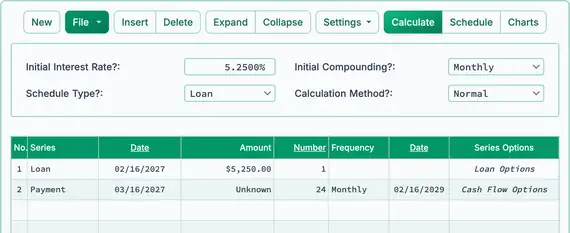
- In the “Amount” column, type U (for “Unknown”). See Fig. 2.
- Set the number of periods to 24.
- Set the frequency to “Monthly”. (The “End Date” will automatically be February 16.)
- Your screen should now look like this:
- Click the button.
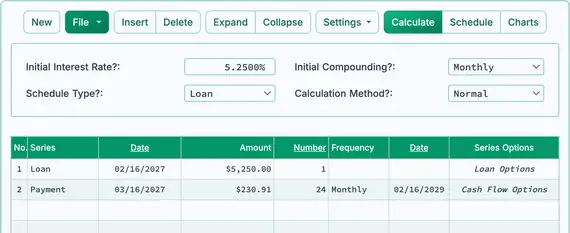
- The expected periodic payment is $230.91. See Fig. 3.
- You may now begin recording payments as they are received. Because the payment amount was calculated using a schedule with 24 payments, update row 2:
- The first payment is received on time. Click row 2.
- Select “Payment” for the series.
- Leave the date set to March 16.
- In the “Amount” column, enter $230.91.
- Enter 1 for Number (of Periods) to record one payment.
- Assume that the next three payments were also received on time and in the correct amount, but you entered them later. You can enter them now as follows:
- Click row 3.
- Select “Payment” for the series.
- Set the date to April 16.
- In the “Amount” column, enter $230.91.
- Enter 3 for Number (of Periods).
- Your screen should now look like this. See Fig. 4:
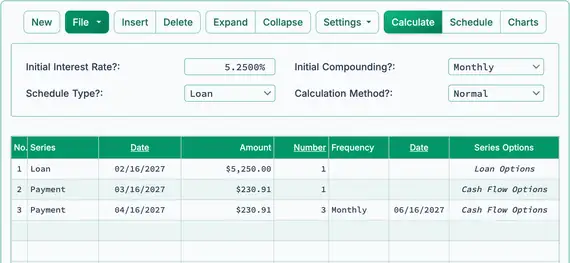
- So far, all payments have been received in the correct amount and on the scheduled due dates. Next, check the loan payoff amount after these four payments:
- Click the button.
- As of June 16, after the payment, the payoff amount is $4,412.77. See Fig. 5.
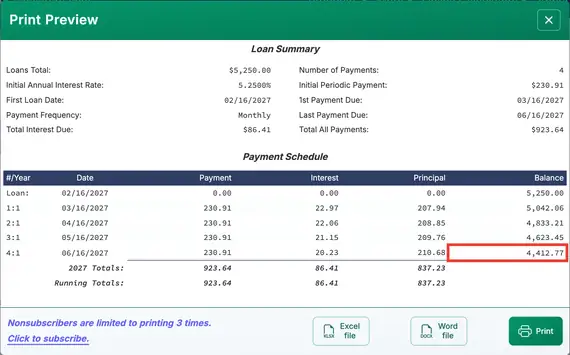
- The borrower makes the fifth payment early and includes an extra $100.00.
- Record the early payment with the extra amount:
- Click row 4 and set the series to “Payment”.
- Set the date to July 10.
- Set the amount to $330.91. (This includes the extra $100.00.)
- Set the Number (of Periods) to 1.
- The next payment is not made in full, and the borrower is now behind on the payment schedule.
- Record a missed payment followed by a partial payment:
- Click row 5 and set the series to “Payment”.
- Set the date to September 16.
- Set the amount to $180.91.
- Set the Number (of Periods) to 1.
- After four regular payments, one early payment with an extra $100.00, and one payment that is $50.00 short, your cash flow data screen should look like this. See Fig. 6:
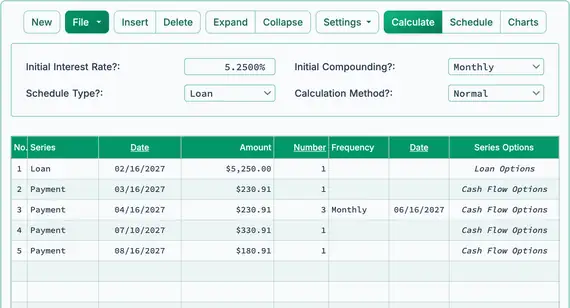
- Note: You do not need to enter 0.00 for a missed payment. However, entering it may help with recordkeeping. It explicitly shows the missed payment and causes the calculator to compute the balance as of that payment’s due date.
- Note: Interest is being calculated through August 16 and added to the loan balance.
- The borrower needs additional funds. You approve an additional loan and add it to the existing loan balance.
- Add an additional loan:
- Click the empty row after the last payment. This is row 6.
- Select “Loan” for the series. See Fig. 7.
- Enter October 1 in the Date column. This is the date the funds become available.
- In the “Amount” column, enter the new loan amount: $1,000.00.
- Enter 1 for Number (of Periods) (a single loan disbursement).
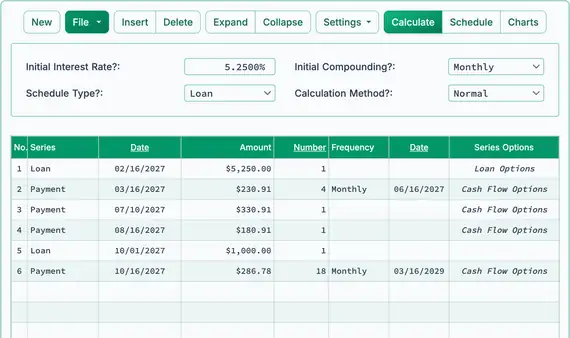
- Because a new loan amount has been added, you will now calculate a new payment. The borrower has agreed to repay the full balance in 18 additional monthly payments.
- Adjust the payment amount based on the new loan:
- Click the empty row following the newly entered loan.
- Select “Payment” for the series.
- Set the Date to October 16. Monthly payments will continue on the 16th of each month.
- In the “Amount” column, type U for “Unknown”.
- Enter 18 for Number (of Periods).
- Set the frequency to “Monthly”.
- If you have been following the tutorial, your screen should now look like this:
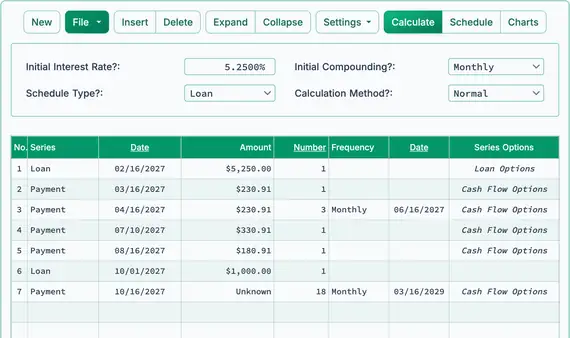
- Click the button.
- The new monthly payment will be $286.78. See Fig. 8.
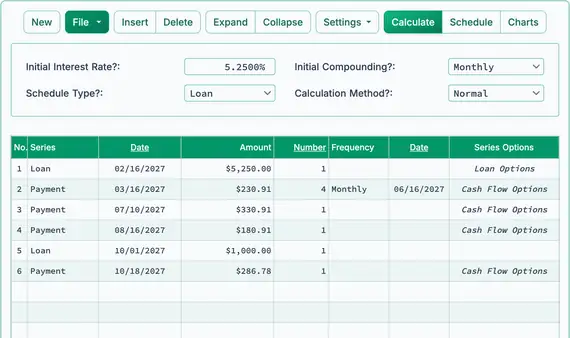
- The borrower makes a full payment but two days late:
- Edit the payment in row 7.
- Leave Series set to “Payment”.
- Change the Date to October 18.
- Leave the Amount set to $286.78 (full payment).
- Change the Number (of Periods) from 18 to 1 (only one payment is being recorded).
- Continue entering payments (and loan advances) as they are received until the loan is fully repaid. You may enter a payment of $0.00 on any date to calculate the loan balance as of that date. See Fig. 10.
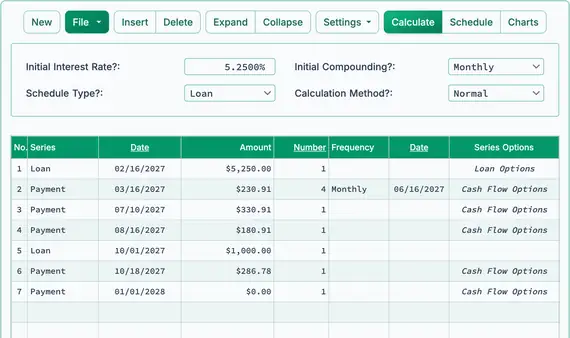
- Calculate the unpaid principal balance as of any date:
- Assume no payments are made after October 18:
- Leave Series set to “Payment”.
- Change the Date to January 1.
- Set the Amount to $0.00 (no payment is made). See Fig. 10.
- Click the button. The row for January 1 will display the loan balance, including interest accrued since the October 18 payment. See Fig. 11.
- Calculate the loan’s payoff amount as of any date:
- Repeat the steps from step 17, but set the Amount on January 1 to “Unknown”.
- Change the rounding option to “Adjust last amount to reach a ”0“ balance”.
- The calculator will determine the payoff amount. The schedule will show a final balance of $0.00.
- The calculated payoff amount will match the balance shown in step 17, adjusted for rounding.
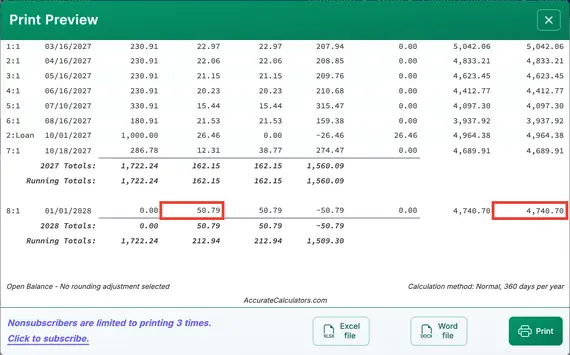
- You can display the same loan in two ways:
- Follow the steps in step 17 to view the balance as of January 1.
- Follow the steps in step 18 to calculate the full payoff amount and confirm that the balance is zero.
If you have any questions about the Accurate Loan Payoff Calculator, you may leave them in the comments section below.
TValue is a trademark of TimeValue Software.
Bill Greer says:
I hit a snag. When I follow the tutorial and click on “Calculate,” this message comes up:
“APR” cannot be calculated when “Rounding” (under “Settings”) is set to “Open Balance”. “APR” calculation can be turned off under “Loan Options”.
When I go to Loan Options, I see no reference to APR and so no way to turn it off.
What am I missing? Thanks for an excellent website!
Karl says:
Hi Bill, first I’m sorry I missed your post. I try to answer all questions in less than 24 hours and I see that I missed yours from Sunday (my time).
Thank you for bringing this issue to my attention. I need to update the instructions or change the calculator defaults.
To fix this…
Go to "Settings". Click on "Analytics" and uncheck the "Include internal rate of return (IRR) on schedule"
You may also need to turn off "Include Regulation “Z” APR Disclosure calculation in schedule?" Click on "Loan Options" in the first row to access.
(Thanks for the compliment.)
Judy Krawiec says:
I hit a snag When I followed the tutorial on an amortization schedule to calculate adding additional money to Principal each month to gain Equity quicker, payoff the mortgage sooner & get rid of MI as fast as you can.
I followed all of the tutorial and the message I got was that a number larger than “1” had to be in the field that I am directed to put UNKNOWN in the field (# of periods).
I honestly would love to understand what each field is “Happy” with. This is an amortization that I try and instill in all my clients. Builds Financial Stability and Credit.
Thanks so much!
Karl says:
Several things, first, I need to change some of the default settings so that users do not run into warning messages. You didn’t mention any issue around these items, but I recommend that you:
Go to “Settings”. Click on “Analytics” and uncheck the “Include internal rate of return (IRR) on schedule”
You may also need to turn off “Include Regulation “Z” APR Disclosure calculation in schedule?” Click on “Loan Options” in the first row to access.
For your specific item with the number of periods, you can enter UNKNOWN if the values for the other columns are entered. EXCEPT, if you are also trying to set a special series (Cash Flow Options) in that row, then the number has to be greater than 1 to open the Cash Flow Options window. Then, once you’ve made your selection, and closed the window, then you can go back and set the number of payments to UNKNOWN. (Yes, I could design this better.)
If this does not get you going, then please tell me what tutorial you are following and what specific step you get stuck on.
The calculator absolutely works. The problem is, I need to get the kinks out of the documentation, because there are some quirks.
Ange says:
Hi, I am trying to setup the calculator for a loan payoff that has fixed monthly principal payments and 1 yearly payment of the interest due. I tried setting up the principal first series with an additional payment at the end of the year where I changed the cash flow option to interest only, but that seems to add more interest than what is actually due. Any tips?
Karl says:
The thing with calculators is "it seems" isn’t valid. It either is, or isn’t. 🙂
Are you saying the other payments are as you want them, and it’s just the interest only payment that’s a problem?
If you want to send the exact details, I’m happy to take a look. However, please note, if you have an interest rate that is not 0%, and the other payment are paying only the principal, when it comes time to pay the interest payment, the interest amount will equal the accrued interest since the beginning of the year.
Irene von Engelhardt says:
Hi, Im having a problem My borrower has to pay an annual payment over 10 year
period, but he pays different amounts during the year, which calculator is best to use. ?
Karl says:
This calculator will track the loan balance for you. Have you tried it? Do you have any questions? I’ll be happy to try and answer them.
Tom says:
I need a form which shows the running balance owed! I had the starting amount Jan 1 2019, he has made periodic irregular payments and I now want to know what he owes me December 31?
Thanks
Tom
Karl says:
Hi Tom, there’s not really a question here. Are you telling me how you used the calculator? If you have a question about how to do this, did you read the step-by-step guide on the calculator’s page? If you did, and that’s not clear, no problem. Just ask your question about what’s not clear.
Tom Warth says:
My apologies if not clear!!!
What I need is a form which has a column which shows the outstanding balance after each payment is made. Am I missing something(not being an accountant or statistician)
Tom
Karl says:
Hey Tom, no problem! That’s exactly what this calculator will do. When you first enter the page, the calculator will have some row prepopulated as an example. Without changing anything, click on the "Schedule" button. That will show you the end result. The loan balance after each payment is shown on the right.
Shauna says:
Hi- Can the ultimate loan payoff calculator be used on a loan with a balloon payment after 10 years? The note has a set interest rate and a set monthly principal payment, but does not identify what the balloon payment amount is. Debtor is 8 years into this 10 year debt and I need to get amortization schedule with final calculations for him. Please advise as to the best tool for doing so.
Thanks
Karl says:
Hello.
>>Can the ultimate loan payoff calculator be used on a loan with a balloon payment after 10 years?
It sure can.
Since there is already an existing loan, probably the best thing to do is to enter the payments which have been made. Then in the next row, enter the payments that are scheduled, but not yet made. So perhaps something like
Nov. 1, 2019, $1,500.00 23
And then add one more final row with an unknown payment amount.
Nov 1, 2021 Unknown 1
Let me know if this doesn’t get you to where you want to be.
Also, here are two balloon payment tutorials.
calculate the balloon amount
calculate the payment required that results in the desired balloon amount
Trent says:
Hi, I’m the lender to a family member for a home loan. They began making regular monthly payments to me beginning February 8th, 2018. (Payments are due on the 8th of each month).
payments have been and remain current and beginning sometime in 2020, they wish to begin making extra random principle payments (in the months they can afford to do so) and in varying amounts.
I guess I’ll then need to be able to take those ‘extra’ principle amounts and somehow re-calculate the balance of the loan after each and every ‘extra’ principle payment? Not sure what to do. They’re goal is to simply reduce the overall length of the note over time. Regular monthly payment amount will remain the same.
Borrowers said that the months they do end up doing this, they’ll send the full payment along with the extra principle amount on the 8th of the month. (payment due date). Some months may contain extra payments and some months may not.
Amount borrowed is 305,000.00.
Interest is 7.0%
Length of note is 300 months (25 years)
Monthly Payment amount is: $2155.68
1st payment was February 8th, 2018
For their sake and mine as it would relate to the ongoing accounting for such note, how may I properly calculate/account for this. Is this the calculator I need for such calculation(s)?
Thanks in advance for any help and/or recommendations.
Karl says:
Yes, this payoff calculator will do what you want i.e. track and adjust the balance as needed depending on the actual payment amount received and when it was recewived.
I suggest stepping through the tutorial to get an overview.
Of course, with this online calculator, you will not be able to save your entries. So you might want to print out the results. Then you can reenter the values when more payments are made.
If you want to save your entries to avoid reentering the payments, please see the software application C-Value! (link at the top of any page). C-Value! is a Windows program and costs $49.95.
Sandra Tuszynska says:
Hi Karl, thank you so much for such a fantastic tool, there is indeed nothin like it anywhere else online that I could find.
I am about to payoff my vendor finance loan and have used your calculator to see how much I need to pay out as I have not been receiving statements. I’d like to check with you if the initial compounding option calculates daily compounded interest coming off the loan?
This is the only tricky bit as all else is simple as I’ve been paying recurring amounts weekly, but I don’t know what that translates to, given the interest is calculated daily paying both principal and interest.
Any feedback would be greatly appreciated, and once more, thank you so much for the great gift.
Sandra
Karl says:
You are quite welcome. Glad you are finding it useful.
To your question, I’m not 100% clear on what you mean by "coming off the loan," but, if the terms of the loan call for daily compounded interest charges, then the second option in "Initial Compounding" is "Daily." compounding.
In case the word "Initial" is confusing things, that just means it’s the first compounding frequency from when the loan originates. Compounding frequency can later be changed, if necessary (under rate change). I think that would be very very rare.
Paul says:
Hello Karl,
First, excellent calculator!
I am trying to calculate a “discounted” loan pay-off amount as of July 6, 2020. The loan originated in December 1, 2015 and the loan amount was $100,000. It is amortized over 20 years.
As per the note, if I pay it off within 5 years of the loan origination (before December 1, 2020) then I would receive a 2% discount off the principal amount. Payment is due and made on the first of each month.
I added a row for July 6, 2020 with $0.00 so that it shows up on the schedule with a balance of $85,402.31 ($62.23 for 6 days of accumulated interest)
I am able to figure out regular payoff amount as of July 6, 2020, however, how do I ask the calculator to show me the “discounted” payoff amount that reduces the principal balance by 2% and adds 6 days of interest? (e.g., I would like it to discount 2% of $85,340.08 balance of July 1st and add 6 days of interest to give me the payoff).
Thank you in advance for your help.
Paul says:
Sorry, I forgot to mention that interest rate is 5.25%.
Thanks,
Paul
Karl says:
Hi Paul, thank you. Glad to hear you think the calculator is "excellent."
I’m not sure I’m clear on what is meant by a "discount off the principal amount." But here are my thoughts.
Set up the calculation has you have before and make your last row a row dated July 1, 2020. Set the amount to "Unknown." and take the original loan amount in row one and change it to $98,000 ($100,000 less 2%). Solve for the unknown. That gives you the balance for the loan with the payments as paid and a 2% discount on the principal.
Finally, enter a row for July 6 with an unknown amount and then calculate. This final calculation is going to add the 6 days of accrued interest.
Let me know how this works out for you.
Brenda says:
Can this worksheet be saved, so we can continue entering the payments as they are made? As there is time still left on the loan.
Karl says:
Yes. Please click on "File", then "Save as…".
Brenda says:
Thank you!! It worked … take care
Brenda says:
Oh no ….
It only shows the first page when it is saved. and I can’t modify anything. Looking to be able to continue adding to it monthly and not have to enter all payments and information again. Thanks
Karl says:
That doesn’t sound good. Are you saying that you had payments on the second page, and after you saved the file and reloaded it, the 2nd-page payments weren’t loaded?
Or ( 2 ), are you saying that after you loaded the file, there was no 2nd page available so that you could enter more payments? If #2, can you please try again? This time click on the Insert button next to the file button. That should add an empty frow for you as you need them.
If you still have a problem, can you send me your file to the email address on the contact page of this site? The file save feature is a new feature being tested, and there could be a problem I need to fix.
Brenda says:
Thank you Karl,
Once I realized and learned about the File Save and the File Open, it works perfectly! What a time saver!!
Thank you for all your hard work and your persistence to help me understand.
You’re the BEST!
Take care
Brenda
Karl says:
Thank you for letting me know. I’m glad the calculator is working for you.
Kelsey says:
Love your calculators. I have a commercial promissory note for $123,785 at 6.5% covering 15 years originating on 11/01/2019. Payments of $3,246.15 are due quarterly, first payment being due 2/1/2020. Interest is compounded exact/simple and accrues using an actual/365 days counting method. I have decided to go ahead and pay monthly. The first couple payments totaled more than the first quarterly payment then I started paying a standard $1,500 a month. I’ve put in all my payments and payment dates and I was comparing them to my bank statement but for some reason the interest/principal amounts are not jiving. I’m not sure if I have selected a wrong option somewhere or if it could be that my bank is funny in that if you make an early and/or over payment then instead of just applying to principal, it delays your next payment due date. Does all this make sense? Is this what is causing the issue or have I not selected some of the correct options? For example I entered my first payment of $2,164.10 made on 12/10/19. Calculator says interest 661.32 and principal 1502.78. Bank applied as interest 859.71 and principal 1304.39. Hopefully I have included all relevant information. Thank you in advance.